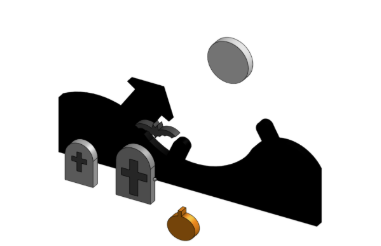
Think of a pop-up book or a stage set. Flat cutouts stand at different distances from you, and that’s what makes the scene feel deep. Today you’ll build a Halloween scene in Onshape the same way, putting your shapes on different planes so the scene has a back, a middle and a front. When you rotate the model, the layers slide apart. That’s the 3-D effect we’re after.
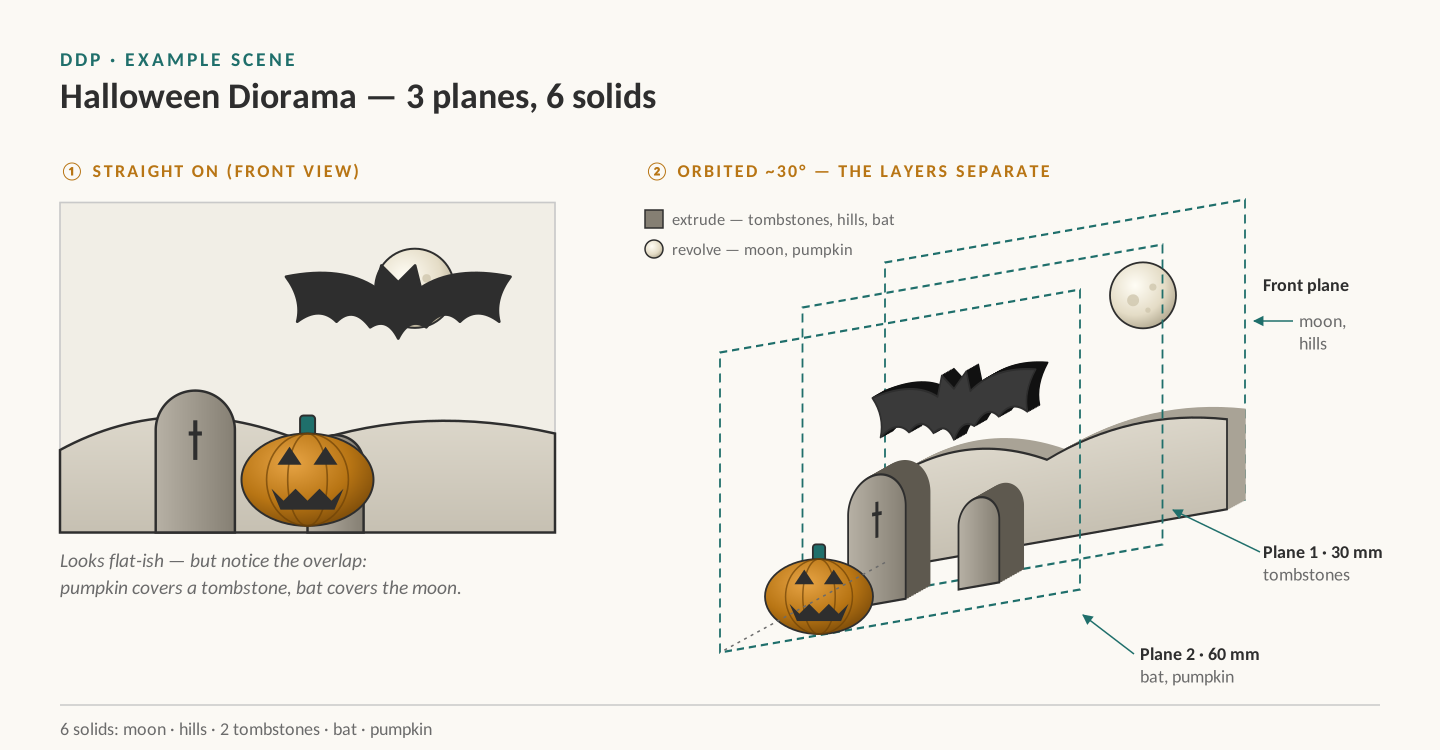
Requirements
- Planes: use at least 2 planes. 3 planes earns full credit. Plane 1 should be about 30 mm in front of the Front plane, and Plane 2 about 60 mm in front.
- Shapes: at least 5 solid shapes (6 or more for full credit), with at least one on every plane.
- Symmetric: at least 2 shapes made with the Symmetric constraint across a construction line (a bat, a ghost, a tombstone, a pumpkin face…).
- Extrude: every plane has at least one extruded shape. Keep extrudes 5 mm or less.
- Revolve: at least one shape is a revolve (a moon, a pumpkin, a cauldron…).
- Fully defined: at least one sketch has no blue lines.
- Overlap: something in front must partly cover something behind it.
Steps
Step 1) Start a new document and set it to millimeters.
Step 2) Plan your scene. Decide what goes in the back (moon, hills, a haunted house), the middle (tombstones, a dead tree) and the front (bat, pumpkin, fence). Big, far-away things go in back. Small, close-up things go in front.
Step 3) Back layer. Make a sketch on the Front plane and draw your background shapes. For a moon, draw a half circle whose flat side sits on a vertical construction line, then Revolve it around that line to make a sphere. Extrude the rest (hills, house) 3–5 mm.
Step 4) Make Plane 1. Click the Plane tool, select the Front plane, choose Offset, and type 30 mm. Rename it Middle.
Step 5) Middle layer. Make a new sketch on Middle. Draw your middle shapes. Use a construction line and the Symmetric constraint to make at least one of them perfectly even. Extrude 3–5 mm.
Step 6) Make Plane 2. Same as Step 4, but offset 60 mm from the Front plane. Rename it Front Layer.
Step 7) Front layer. Sketch on Front Layer and add your closest objects. Make sure at least one of them covers part of something behind it.
Step 8) Check your depth. Orbit the model about 30° to the side. Your layers should separate like the example above. For an extra-dramatic look, open the view cube menu and turn on Perspective.
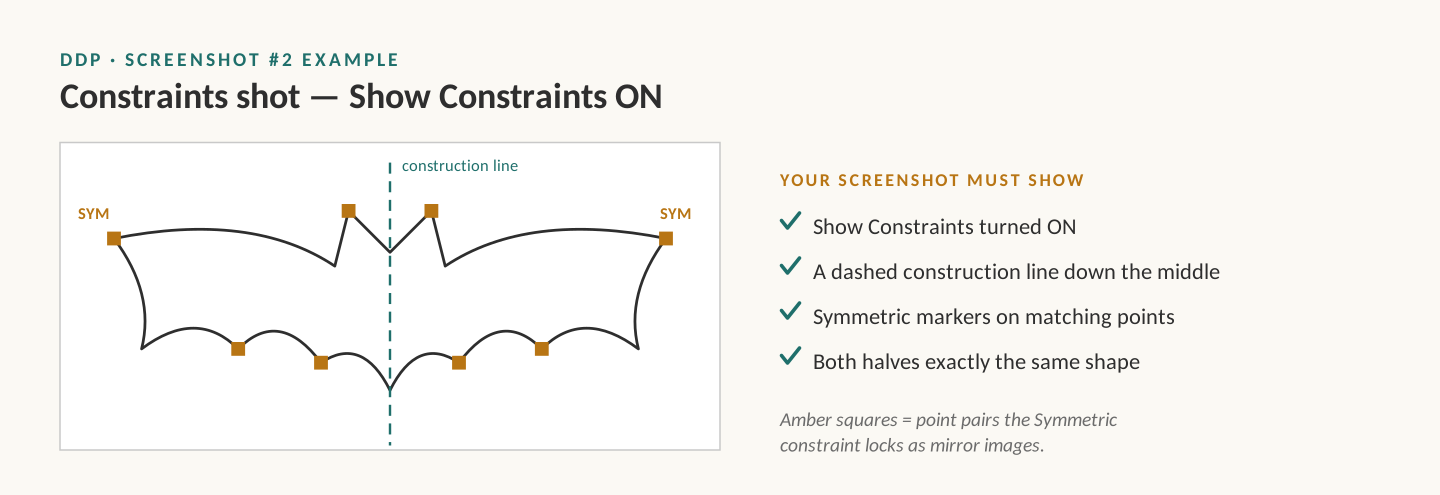
Step 9) Screenshot #2. Open your best symmetric sketch, turn on Show Constraints, and take a screenshot. The symmetric markers and the dashed construction line must be visible.
Step 10) Submit. Put both screenshots in a Google Doc:
- Screenshot #1: your finished scene, orbited so the layers are clearly separated.
- Screenshot #2: your constraints shot from Step 9.
Watch Out!
- A revolve is as thick as it is wide. A moon with a 20 mm radius sticks 20 mm forward and can crash into the next plane. Keep revolved shapes small, under about 12 mm radius.
- Extrude toward the viewer, and keep it thin. A 40 mm extrude on the back layer will swallow your middle layer.
- Straight on, it will look flat. That’s normal! Orbit the model to see the depth.
Grading Rubric (100 points)
| Category | Points | What earns the points |
|---|---|---|
| Planes & depth | 25 | 3 planes = 25 2 planes = 20 1 plane = 10 |
| Number of shapes | 20 | 6 or more = 20 5 = 17 4 or fewer = 10 (at least one shape on every plane) |
| Required tools | 25 | Symmetric on 2+ shapes = 10 At least 1 revolve = 5 Extrude on every plane = 5 At least 1 fully defined sketch = 5 |
| Constraints screenshot | 15 | Show Constraints is on, with symmetric markers and the construction line clearly visible |
| Theme & craft | 15 | Clearly Halloween; front objects overlap back objects; shapes are clean and nothing crashes through another plane |
| Total | 100 |
Some Examples of Student Work