Monthly Archives: October 2026

Shape as A New Plane

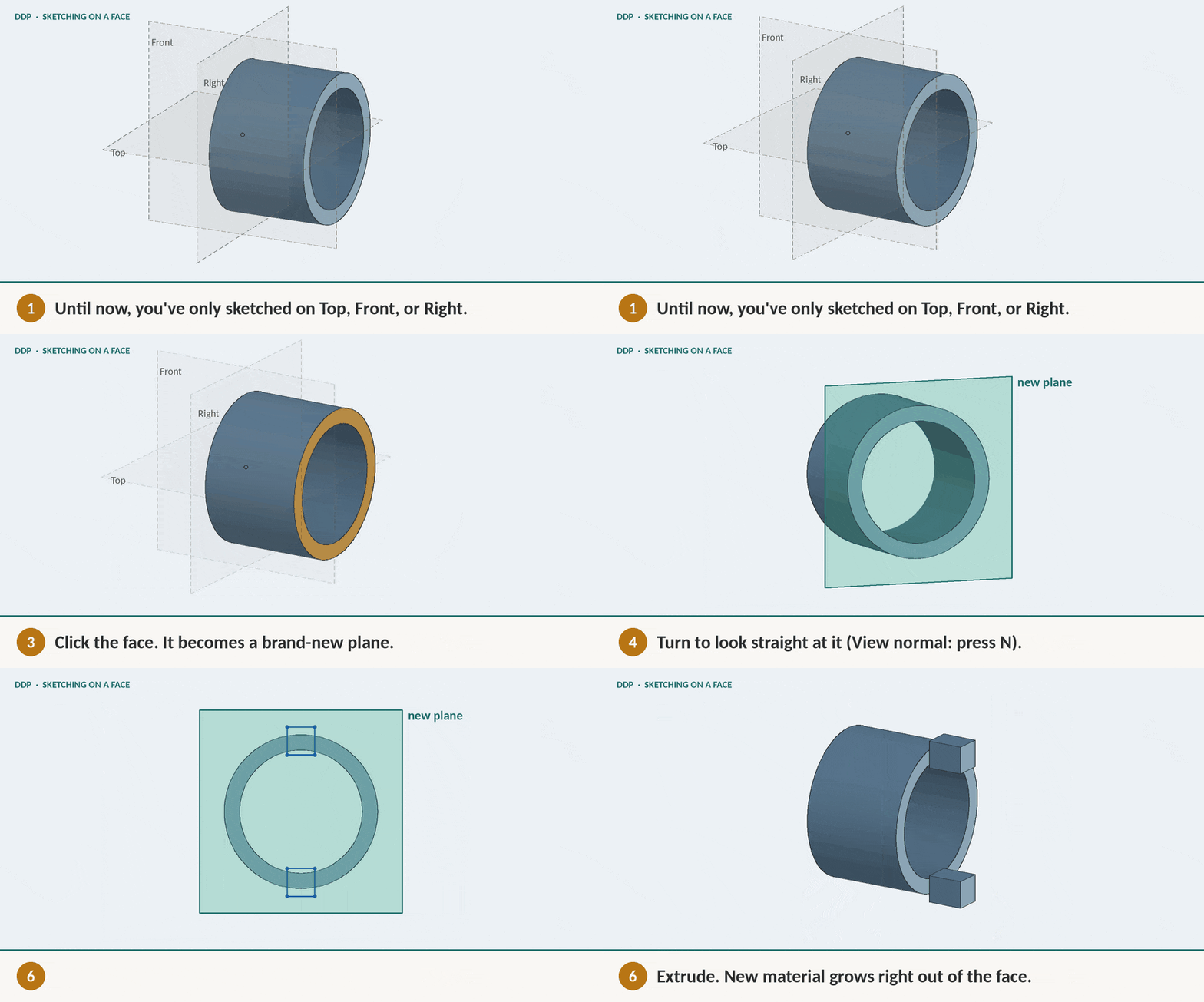
Concept; A Face of a shape can be its own new plane for sketches
The Assignment. Part 1

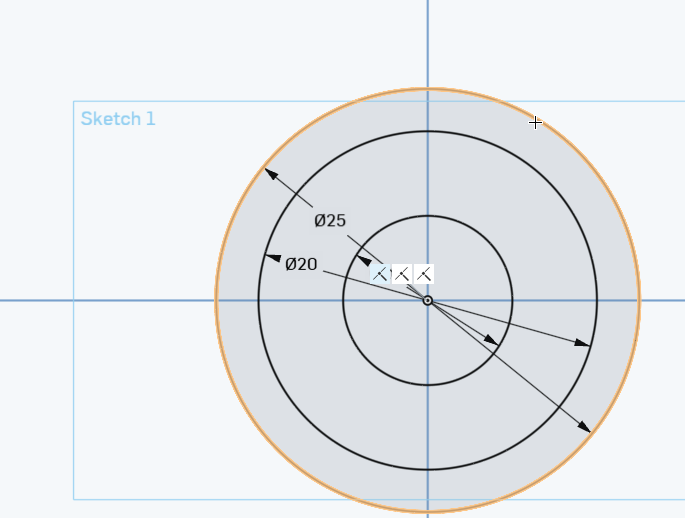
Step 1) Create 3 circles whose radii are 10,20 and 25 MM . Make sure it’s fully defined (no blue) .
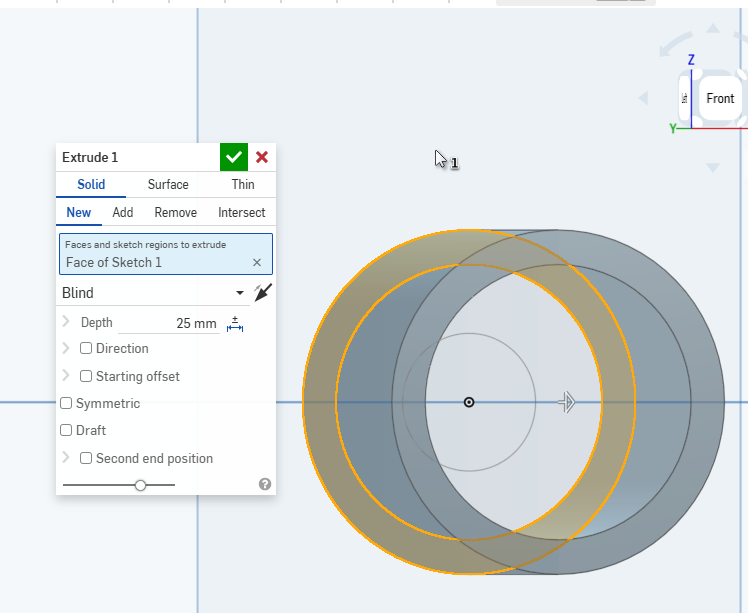
Step 2) Extrude the outer rim :
Step 3) Create a new sketch on the face of the outer rim. Call this sketch “sketch on face”:
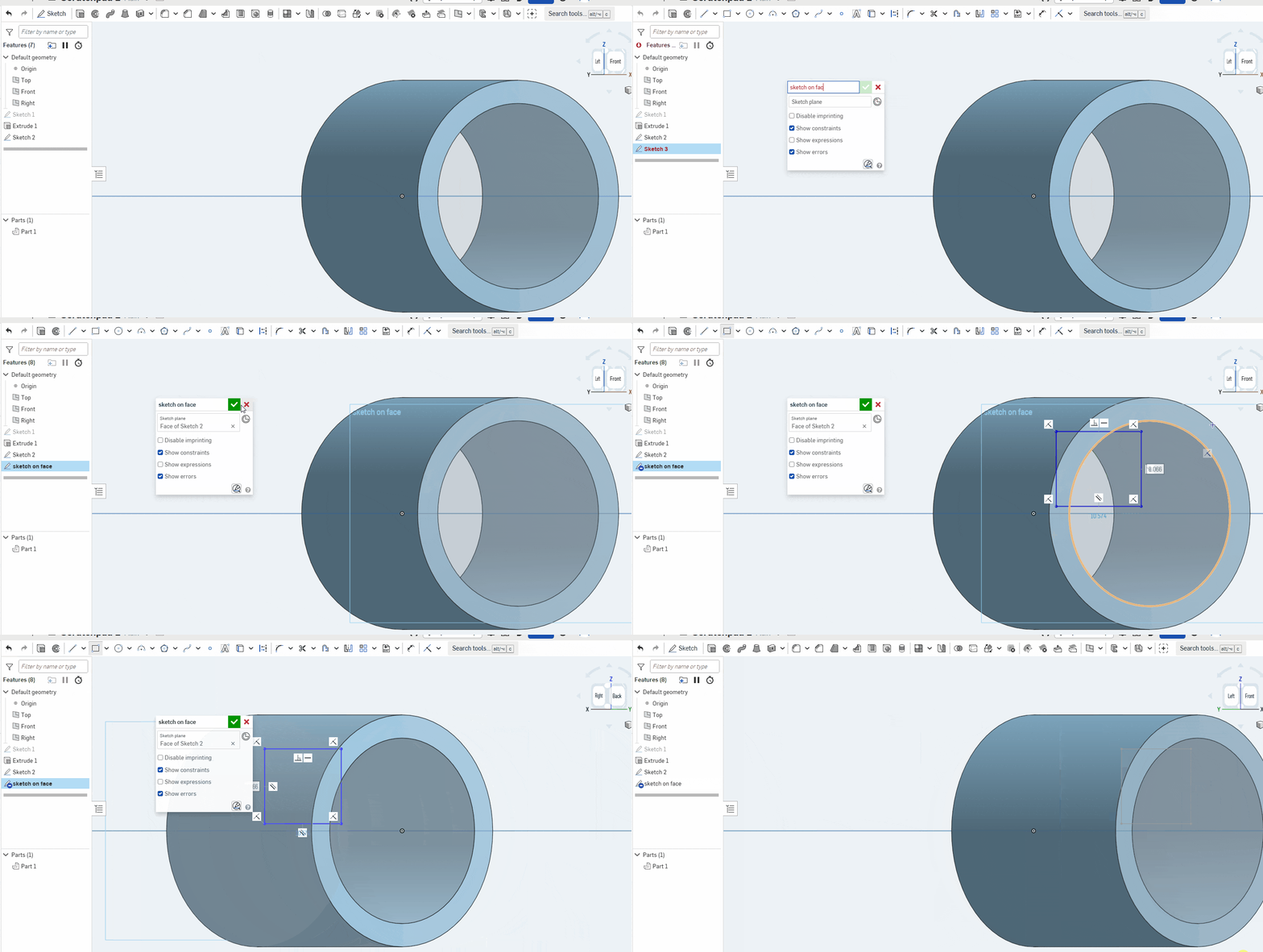
Step 4) Create an extrude on this plane. You can do whatever you like, below is one example of it could look like:
How to use Use

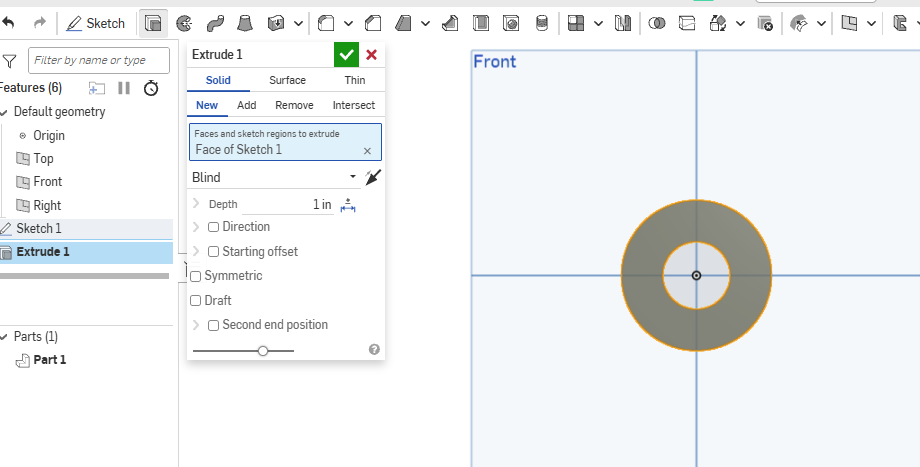
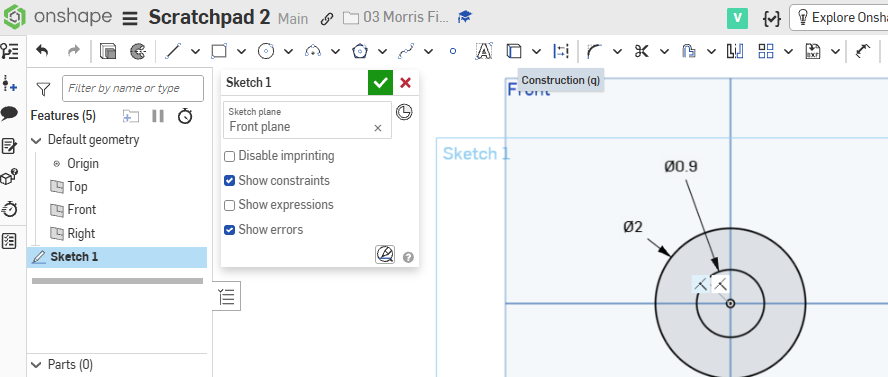
Step 1) On the front plane, create these 2 circles dimensioned.

Step 2) Add an Extrude

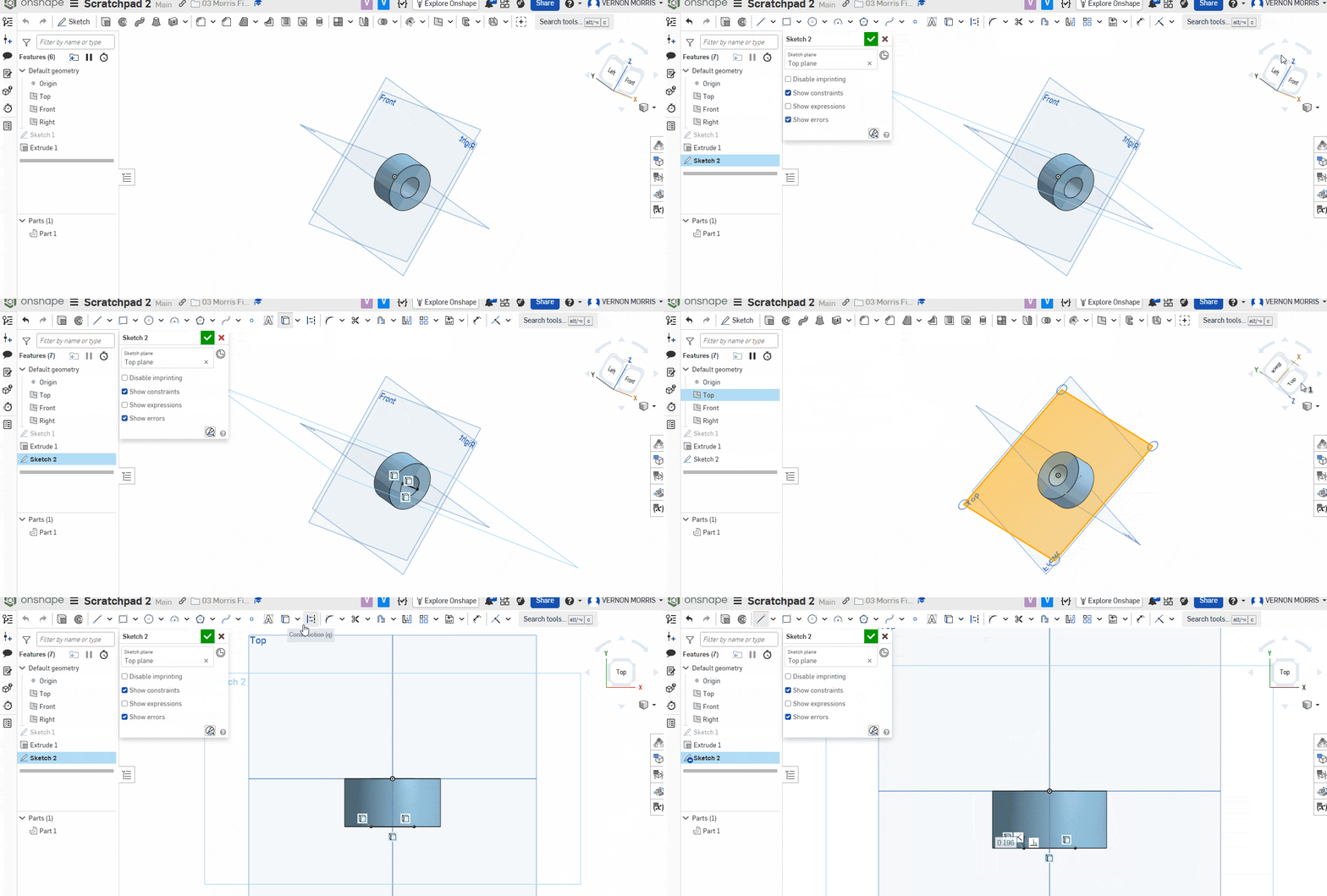
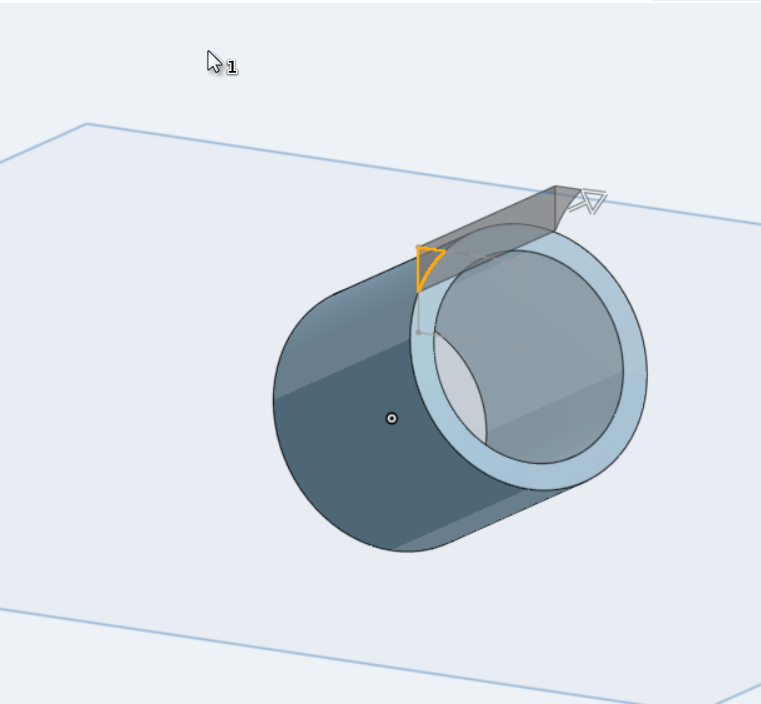
Step 3) Now make a sketch on the TOP plane and use the Use project tool to create a line with the inner circle. Click the image below to expand the image.

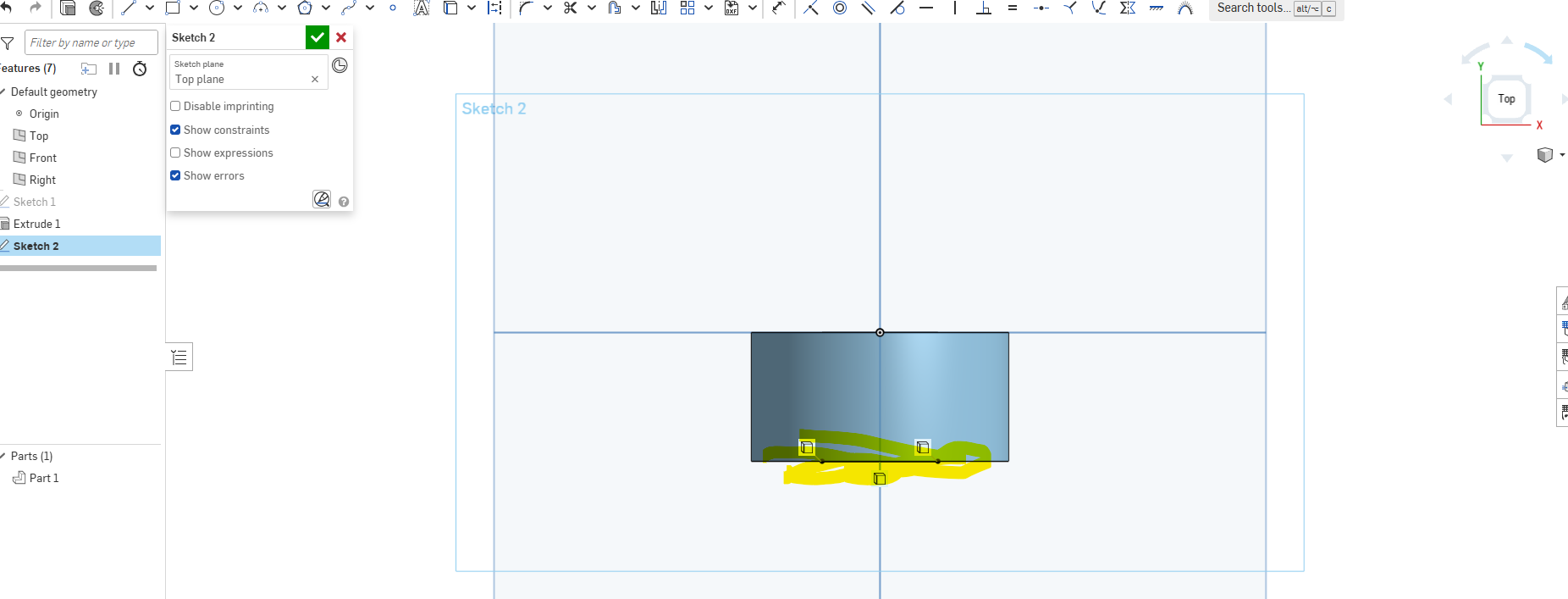
Step 4) The top plane now looks like this. The line highlighted in yellow is what we created in the prior step with the Use command:

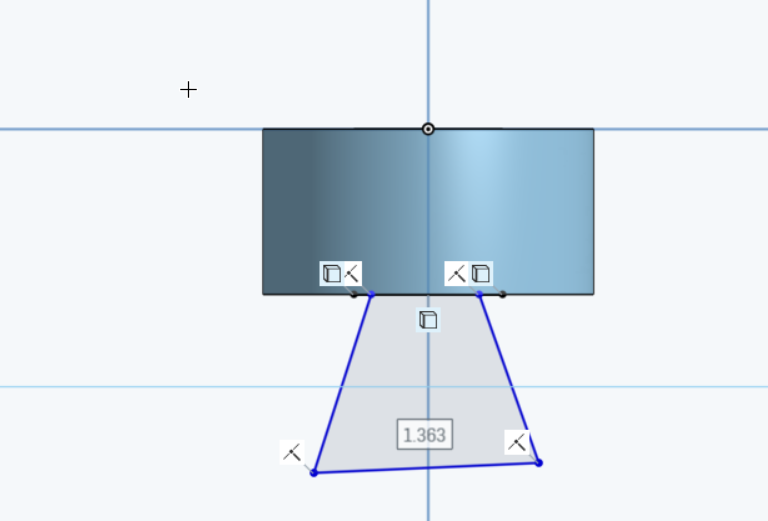
Step 5) Create a trapezoid with that line as a base. Something like this :

Step 6) Take a screenshot of this and put it into a google doc. I need to see the above marks (showing that you used the “use” command)

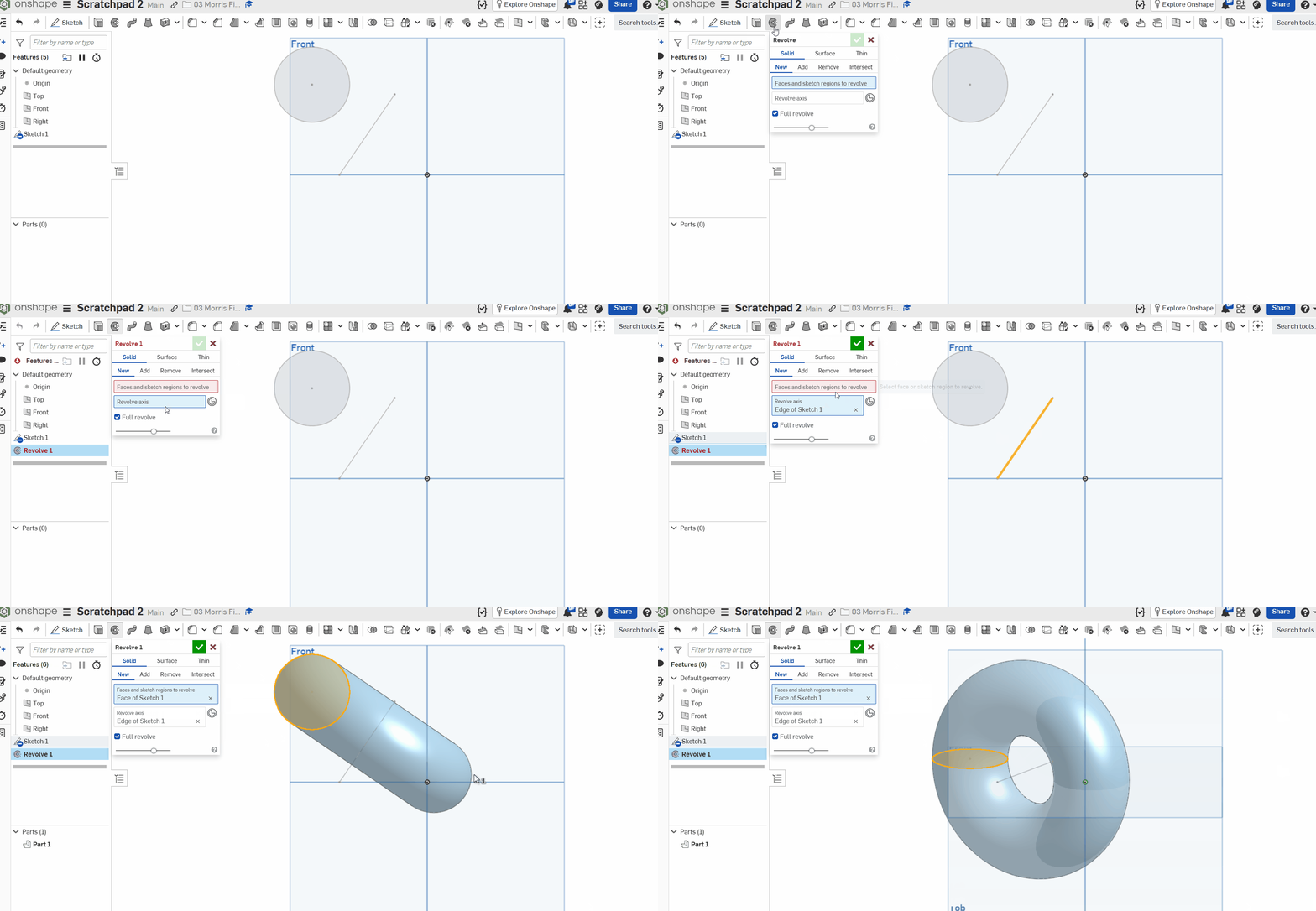
Step 7) Make a second picture. I want a 5 sided shape and for you to revolve that around a line. Submit that as the second screenshot.

Show/Hide Constraints Do Now

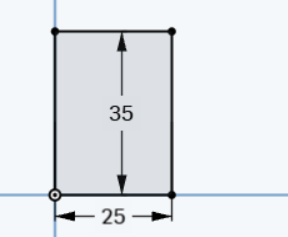
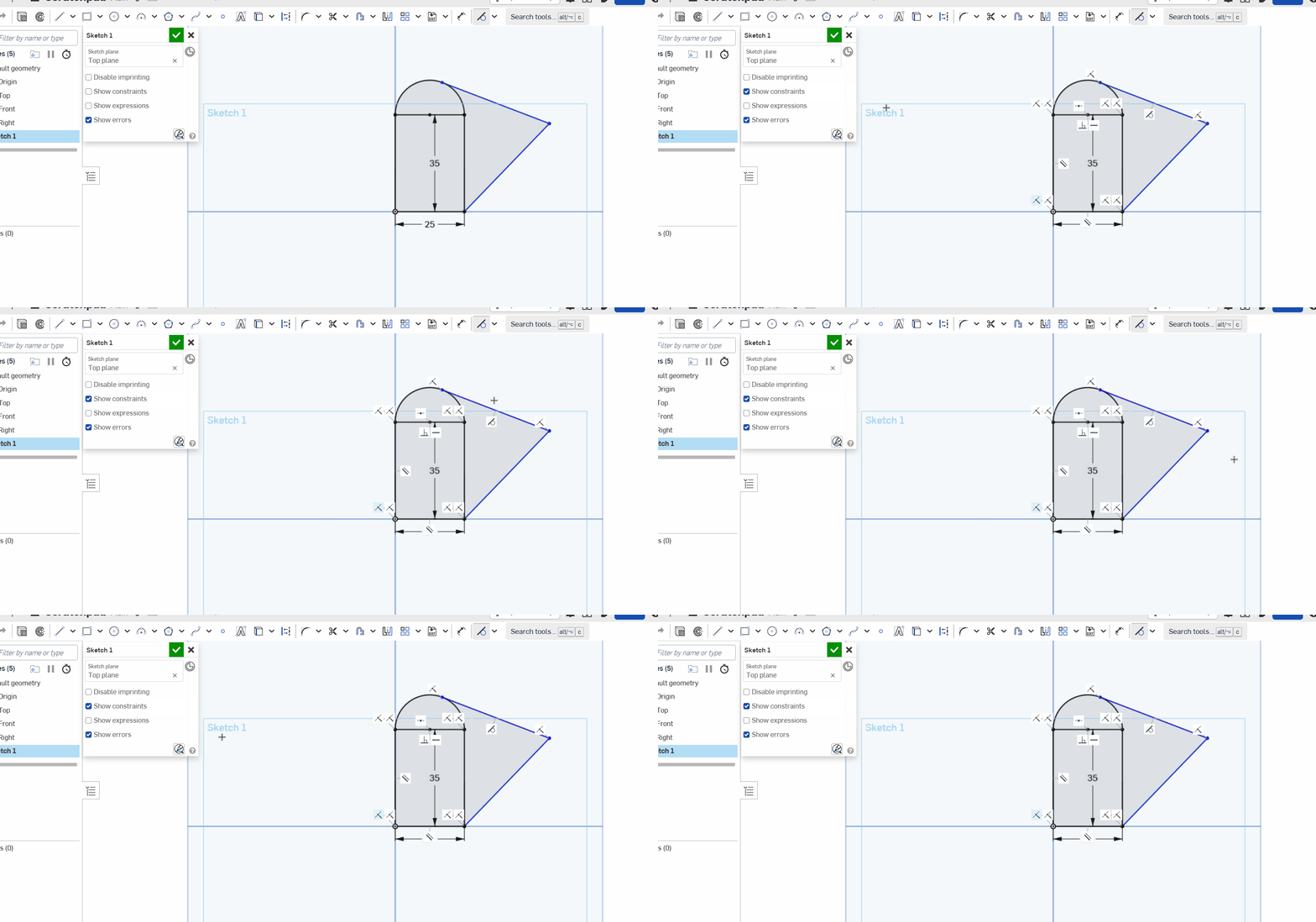
On the Top plane, make this shape. Ensure the corner is centetered at the orign. Use Corner rectangle:

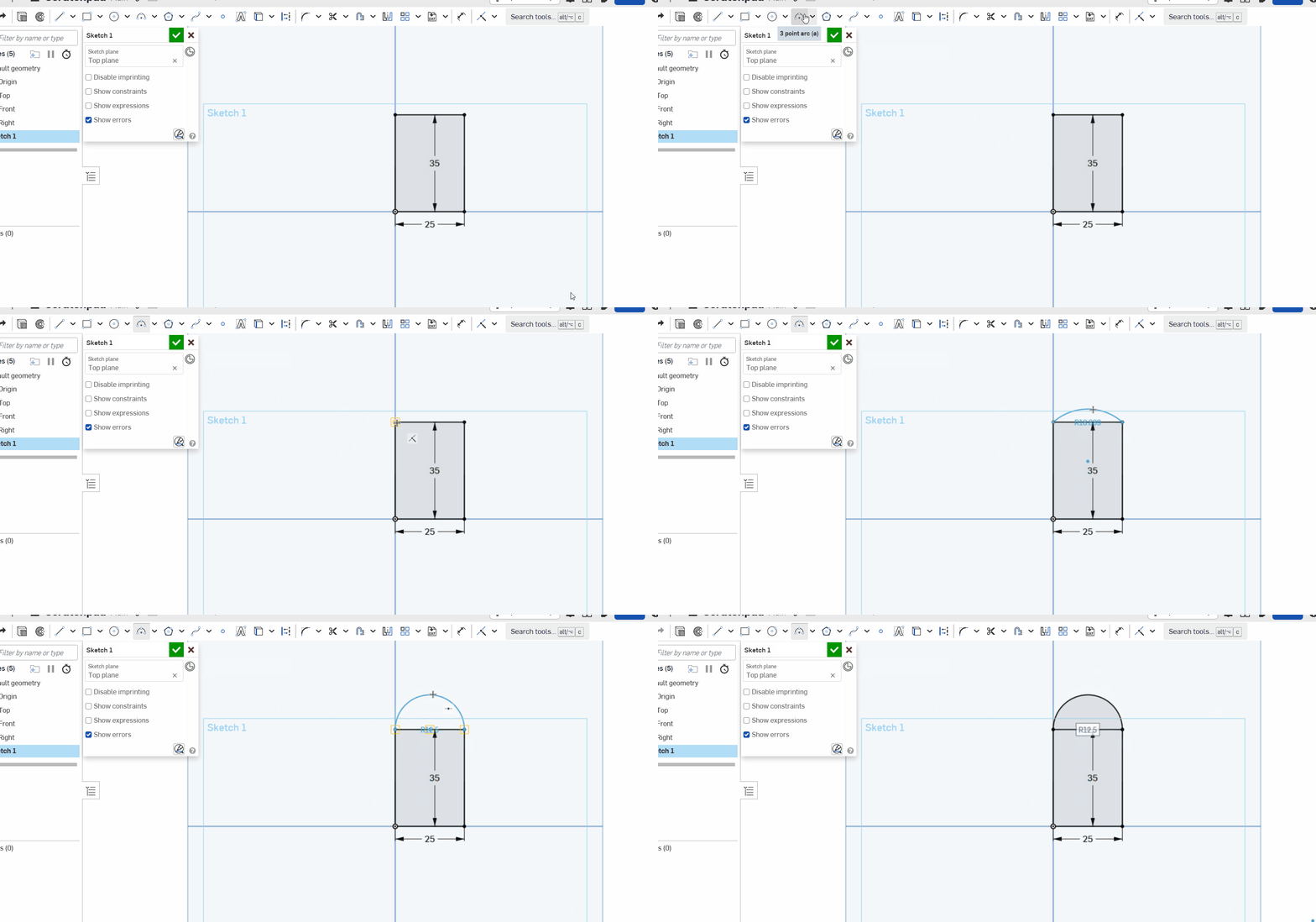
Step 2) add teh arc:

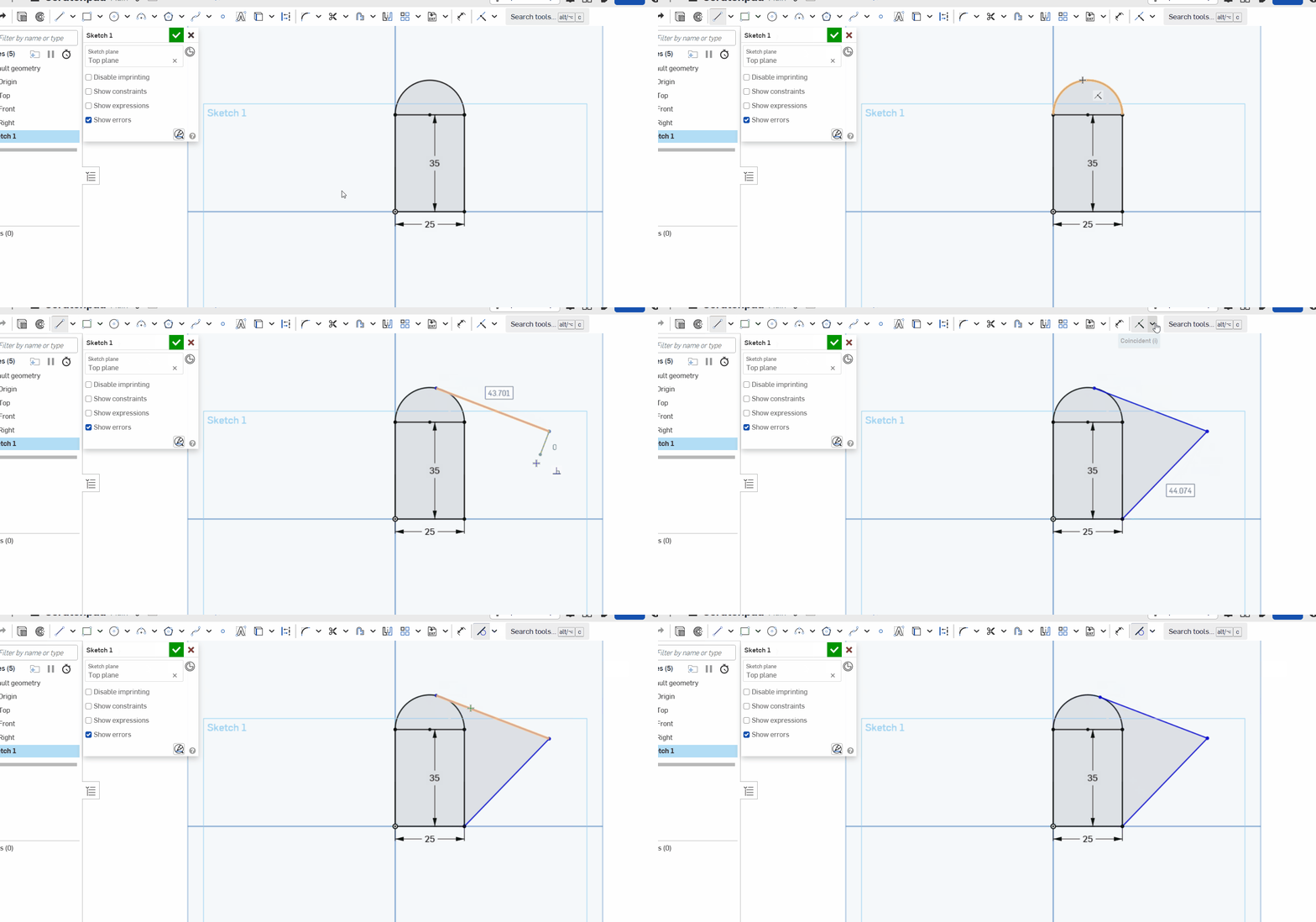
Step 3) Lines and make 1 tangent:

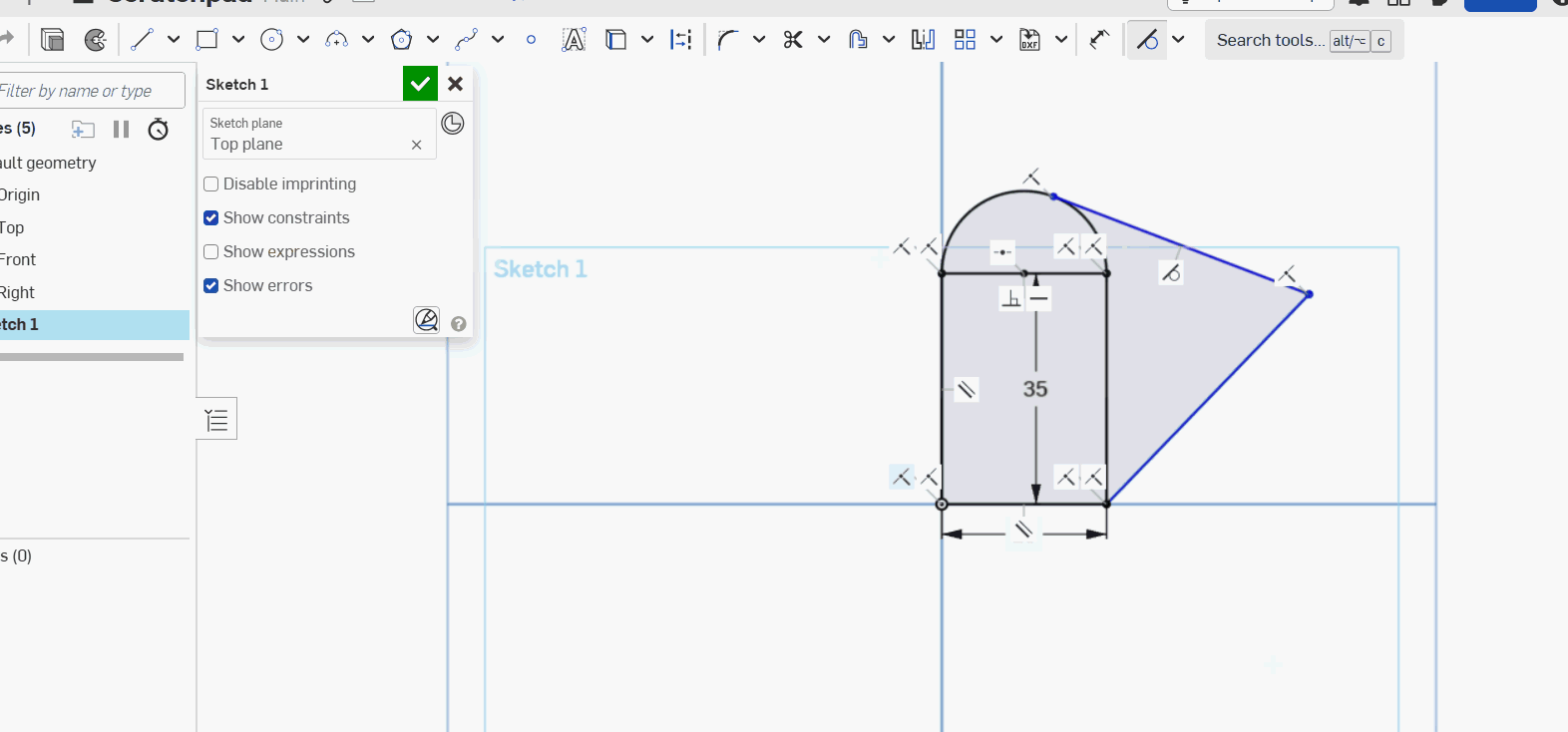
Step 4) Turn on “show constraints” and take a screenshot. Make sure that you have the same constraints that mine does

Below is the a screenshot of what your constraints should be :