Make a new project at https://makecode.microbit.org/
Activity 1: Temperature Limit Check
Objective: To create a program that continuously runs and measures the temperature. If the termperature is above a certain limit, then the program displays a heart icon.
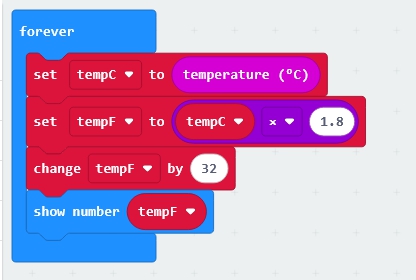
Instructions Create a variable (link) called warmLimit ; give a value of 25. If the temperature is above 25, show a heart. To do this use an if/else (link). The links are hints , they do not show you exactly what to do. (How to link) There is one flaw with my code. See if you can fix it. It’s from a prior lesson, not the new stuff.
Modification: Once you have completed this do a Fahrenheit version (link). You will need to change the temperature limit though from 25 to something more like 75 or 80 since you’re now in Fahrenheit
Activity 2 : Shake Counter
Objective : To create a program that counts how many times the micro:bit is shaken. Each time the micro:bit is shaken, the program adds one to a running total and displays the new count on the screen.
Instructions at the start of the program make a variable called shakes; then use an on shake event (link) to increase the variable by 1 (link) and then display the variable.
Once you have that done, add an if test so that when the shakes variable is greater than or equal to 10, display an image.
Activity 3 (if time)
Objective : To create a program that acts like a dice. Each time the micro:bit is shaken, the program picks a random number from 1 to 6 and displays it on the screen.
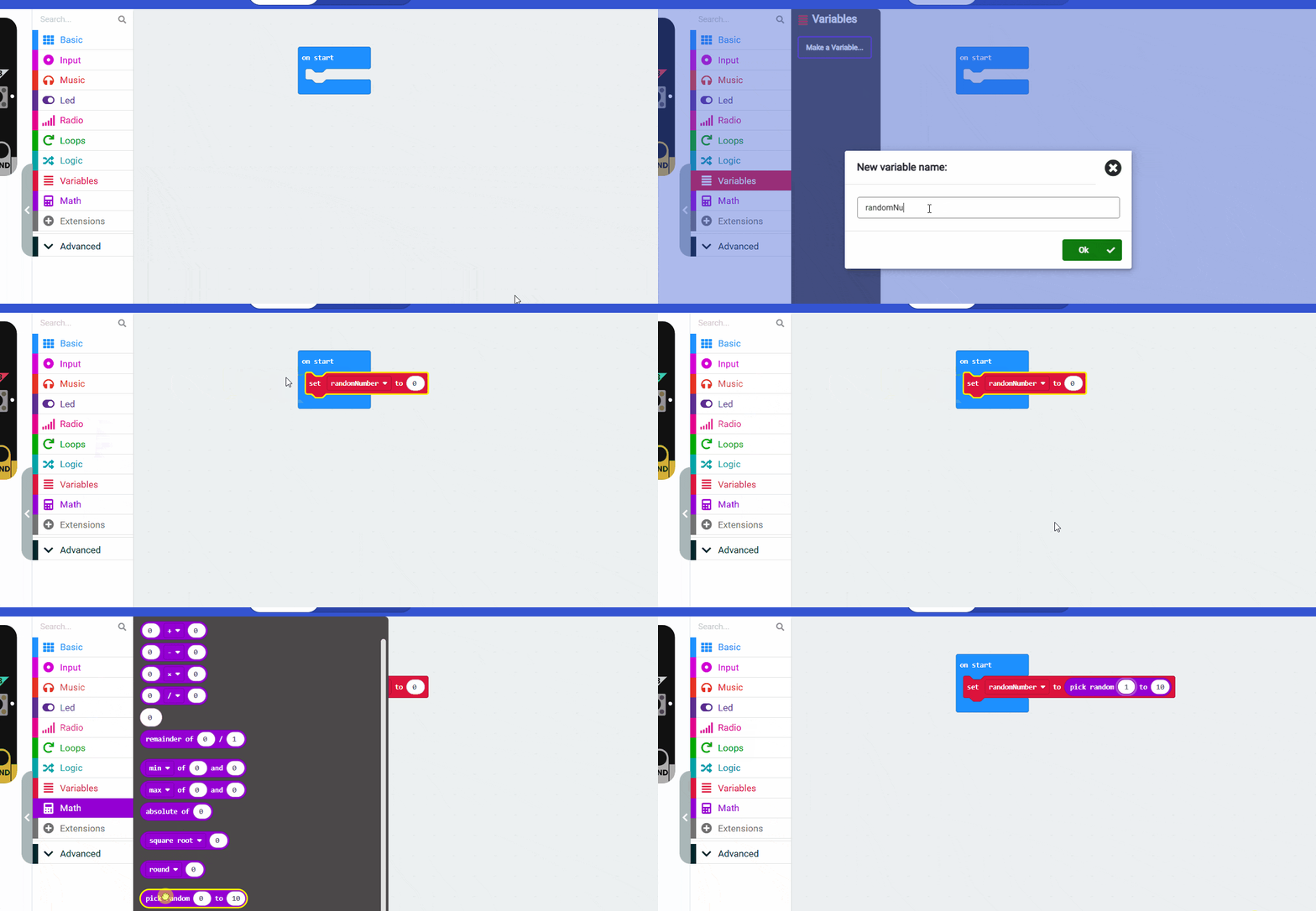
Instructions 1) on start, make a variable called roll 2) on shake set the value of that variable to a random number (link) between 1 and 6 and display the number.
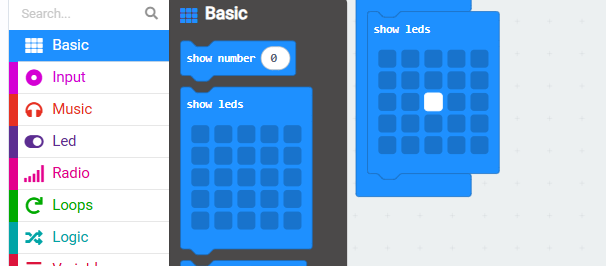
If you have time, we are going to modify this tomorrow, start thinking of how you could do this : instead of showing the number 1 or 2 or 4.. use the show leds command to draw a die side that ilooks like a 1 or a 2 . For instance, here’s how you could show a “1”: (link)