Category Archives: DDP

Fillet and Shell

Units : MM

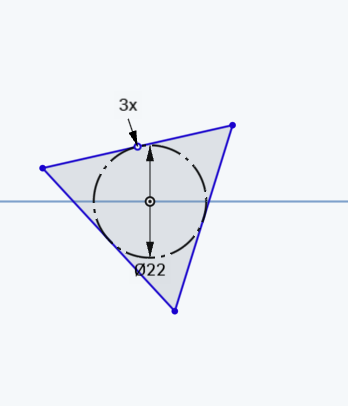
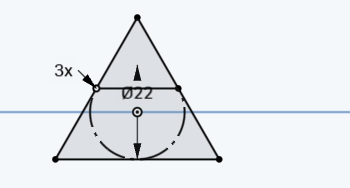
Step 1) Inscribed Triangle . Dimensioned to 22. Centered at origin

inscribed triangle

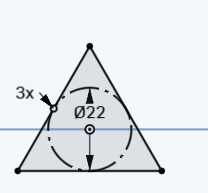
Step 2)  Make 1 vertex of triangle vertical with the origin. This will define the shape

inscribed triangle 2

Step 3)  This is what your shape should now look like :

inscribed triangle 3

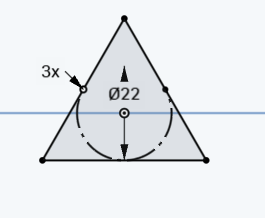
Step 4) Use the scissor tool to delete the top 3rd of the circle

inscribed triangle 4

Step 5) Connect the 2 points (make sure it’s defined)

inscribed triangle 5


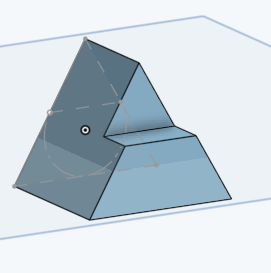
Step 6) Perform 2 extrudes (25 and 35). :

inscribed triangle 6

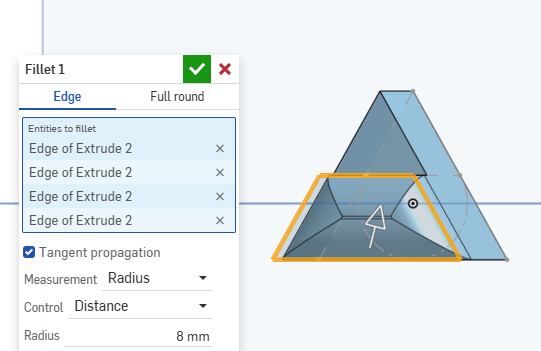
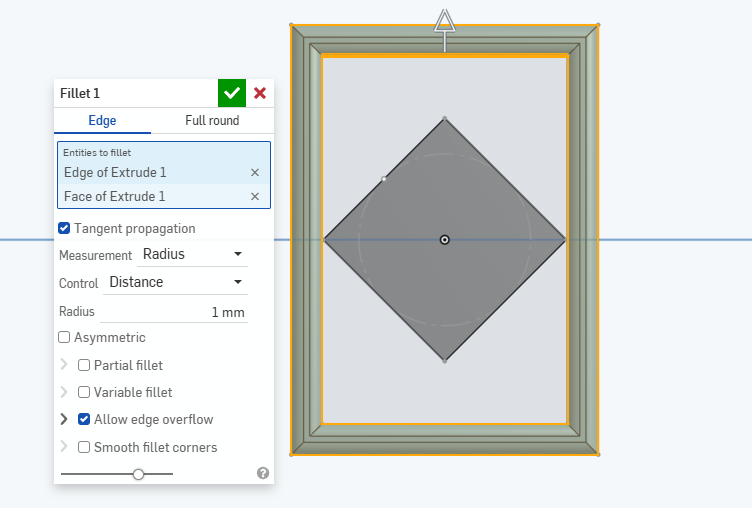
Step 7)  Fillet as shown:

inscribed triangle 7

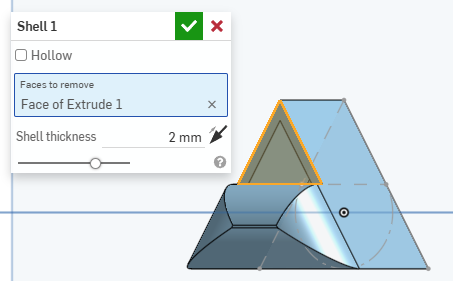
Step 8)   Add a shell:

inscribed triangle 8


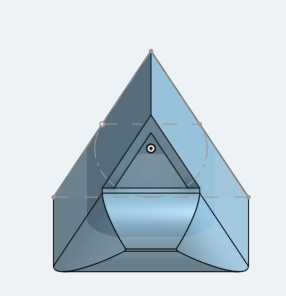
Step 9)  Final product:

inscribed triangle 9

Extrude Fillet Chamfer

Workspace Units: MM

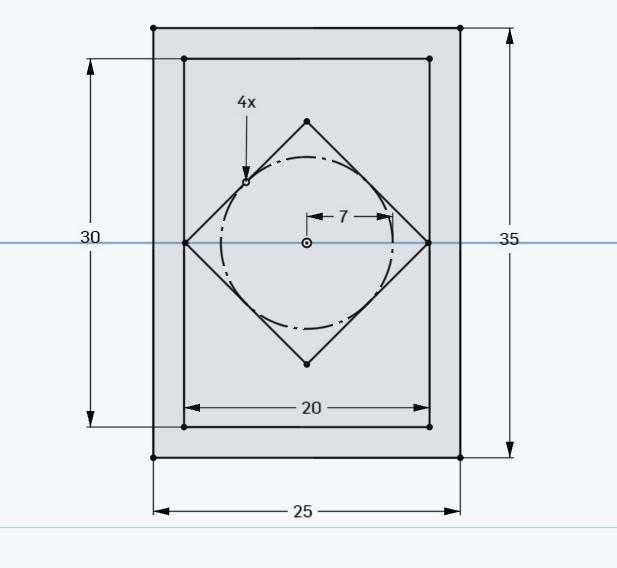
Step 1) Create a new sketch on the front plan and create the following sketch. All share centered at the origin:

dimensioned shape

(Click image to enlarge)

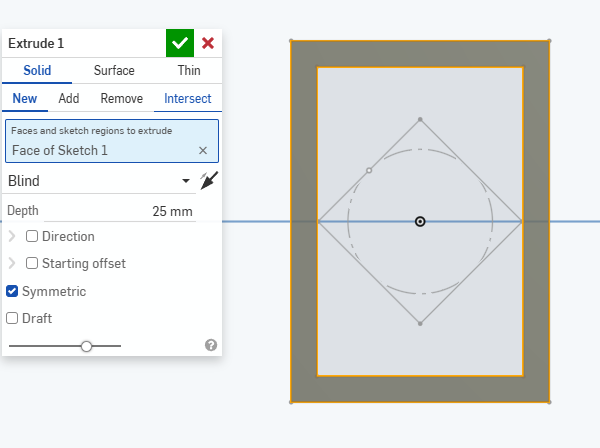
Step 2) Extrude 1:

extrude 1

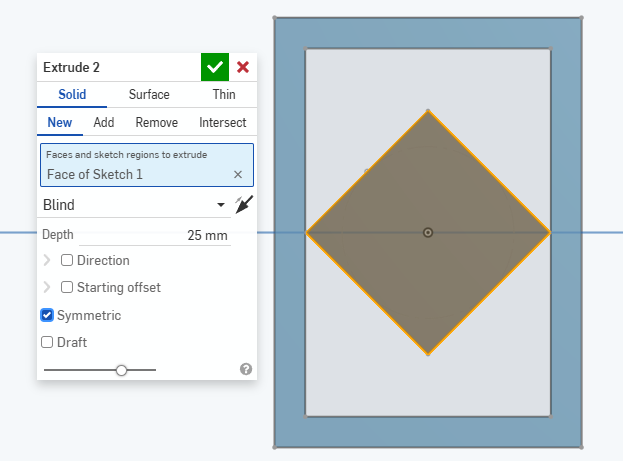
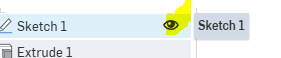
Step 3) If sketch 1 is hidden, make sure to show it

Step 4) Extrude 2:

extrude 2

Step 5)Fillet :

fillet1

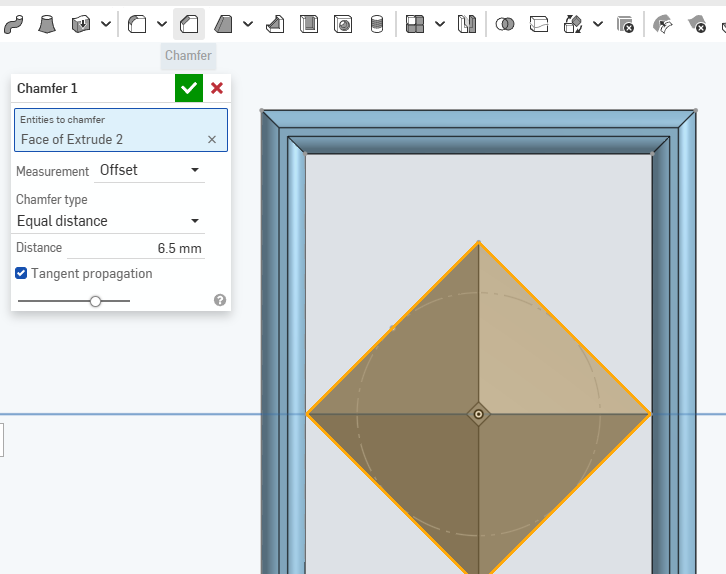
Step 6) Add a chamfer:

chamfer

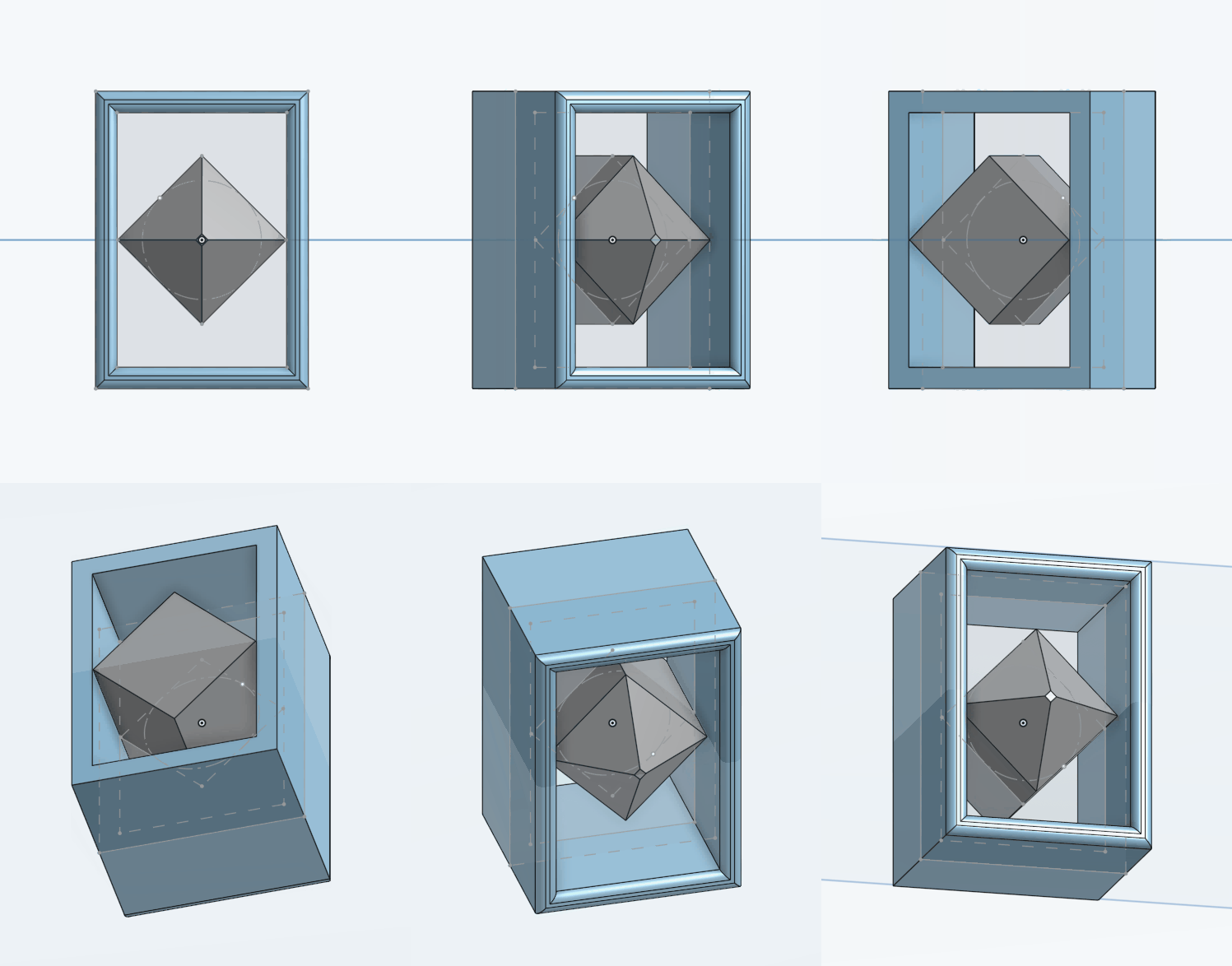
Result

extrude-fillet-chamfer

Angle, Symmetric, FIllet practice

Set document to MM

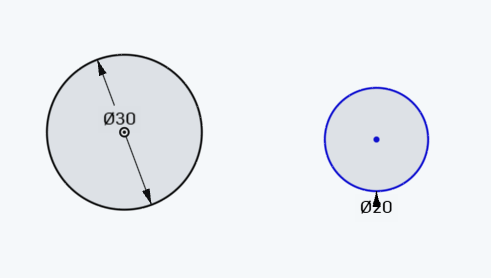
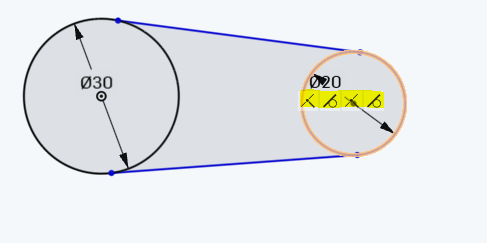
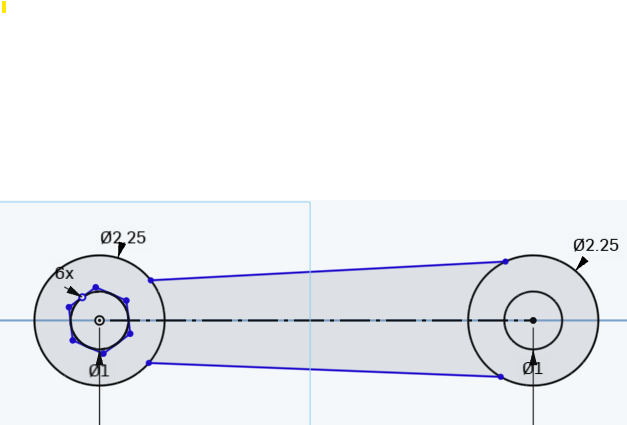
Step 1) Make a circle, centered at origin with a diameter of 30. Then create a circle with a diameter of 20 to its right.
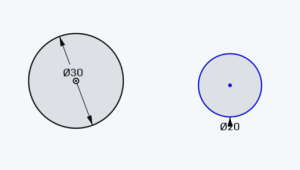
twocircles1

Step 2)  Connect the 2 circles with 2 lines coincident on to both circles. You should see the highlighted constraints when you mouseover either of them:
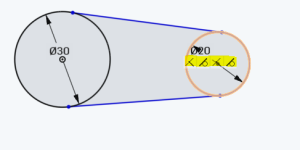
twocircles2

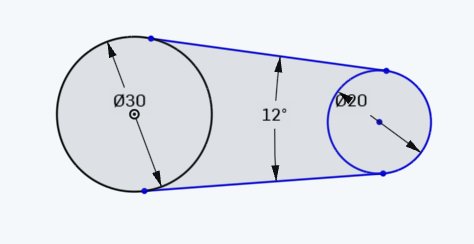
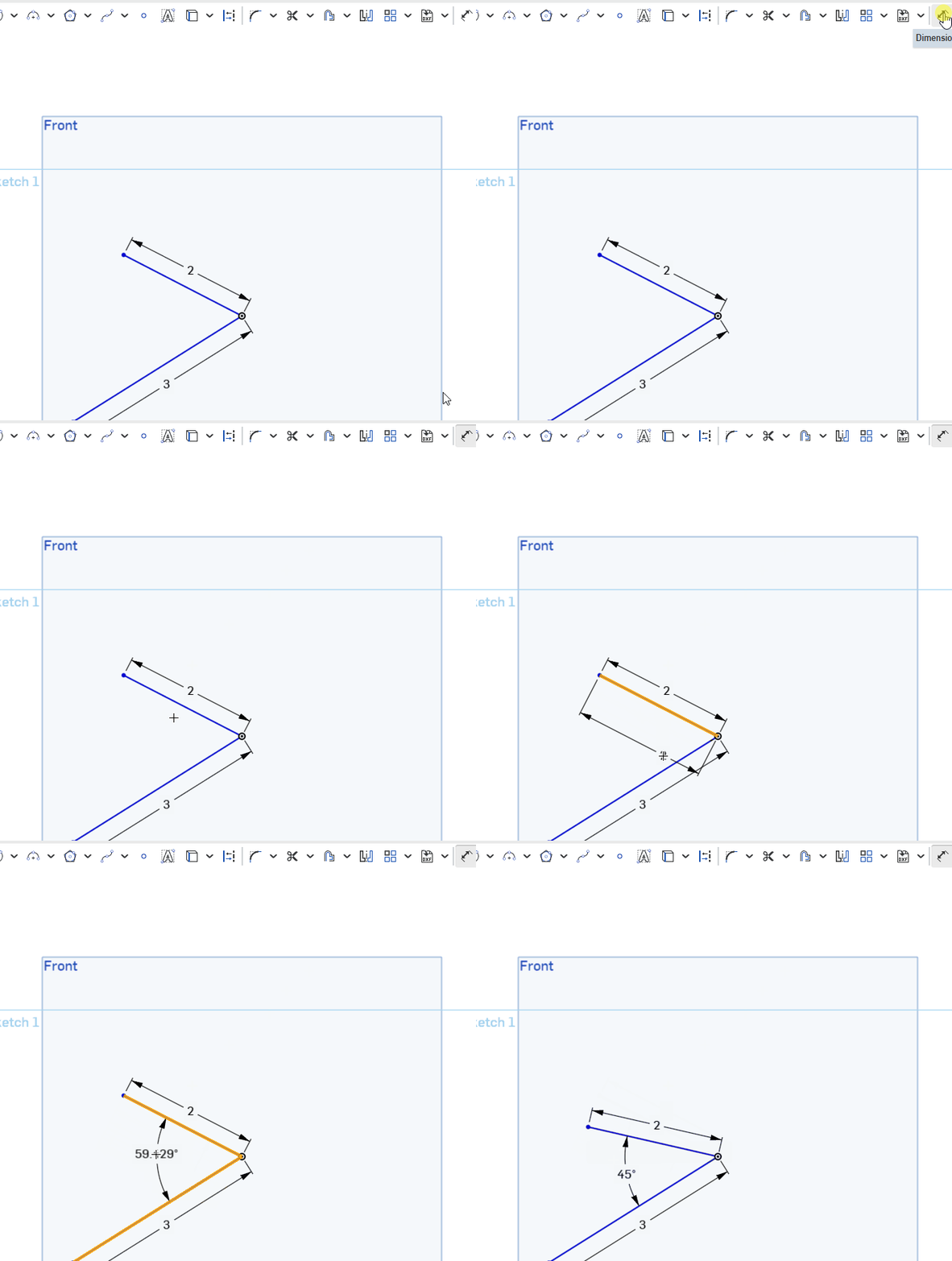
Step 3) Dimention the angle between the 2 lines to be 12 degrees. Make sure it’s the ANGLE , not the distance. If you’re not sure how to do that, watch this short animation.
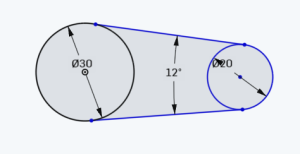
twocircles12 degrees

Step 4) Create a construction line connecting centers, then make the two lines symmetric to that line:
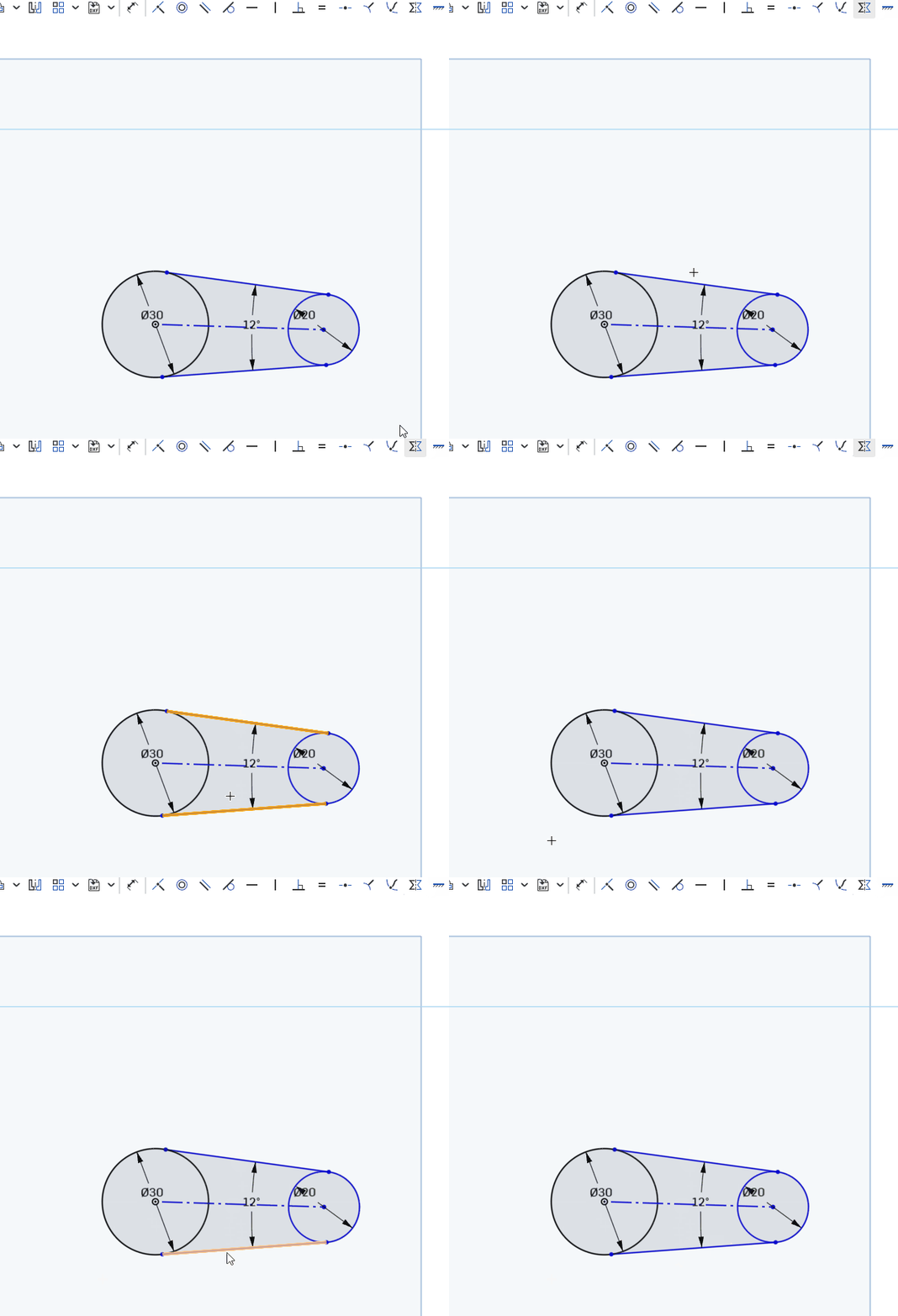
symmetric

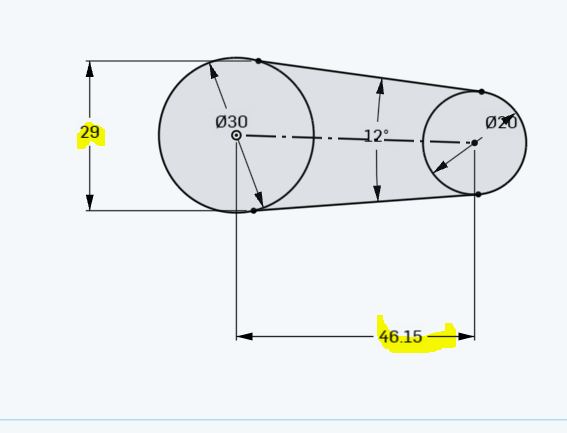
Step 5) Add the 2 dimensions shown . The shape should now be fully defined (all black)
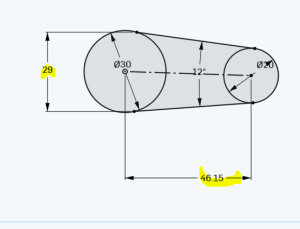
twocircles4


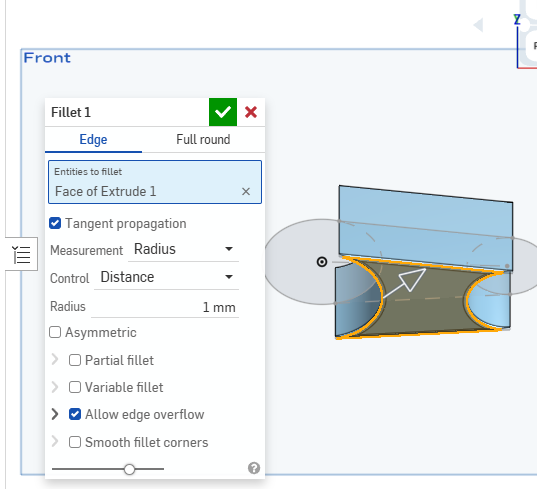
Step 6) Extrude the middle part by 15 . Symmetric extrude and then add a 1 MM Fillet:
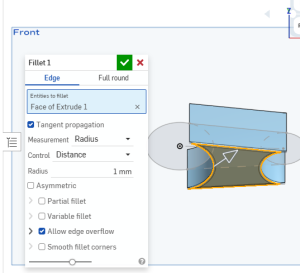
extrude and fillet


Step 7) Extrude the  2 circles by 30 MM (no pic. You should be able to do this on your own)
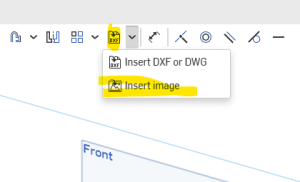
Lines and Angles and Symmetric Extrude

Step 1) Open up a new document.
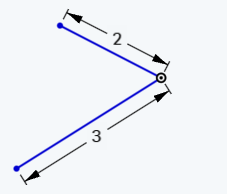
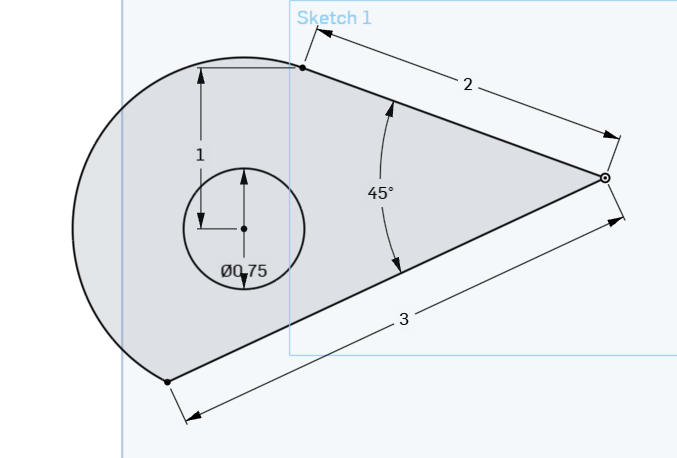
Step 2) Create a line of length 2 from the origin and line of length 3 from the origin; something like . Their exact angle doesn’t matter, just something like :

2lines

Step 3) Create a 45 degree angle between the 2 line segments:

how-to-do-angle

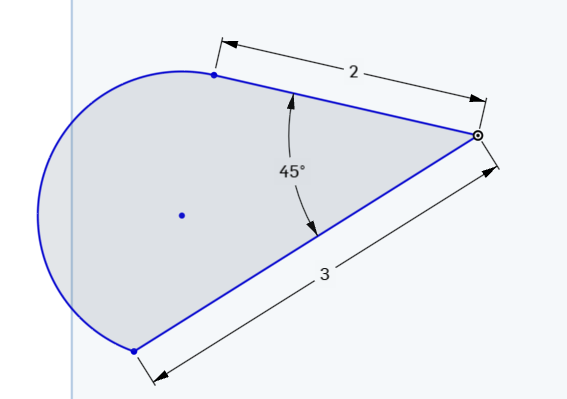
Step 4) Connect the end points with a tangent arc:

tangent-arc

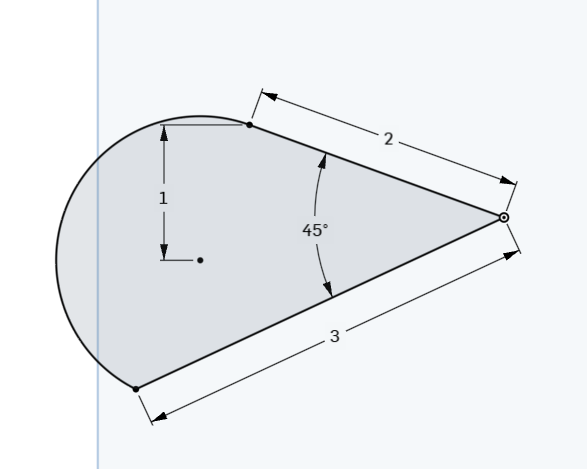
Step 5) Dimension the center of that arc with the point of top line as shown:

tangent-arc-dimensioned

Step 6) Create an inscribed circle as shown :

inscribed-circle

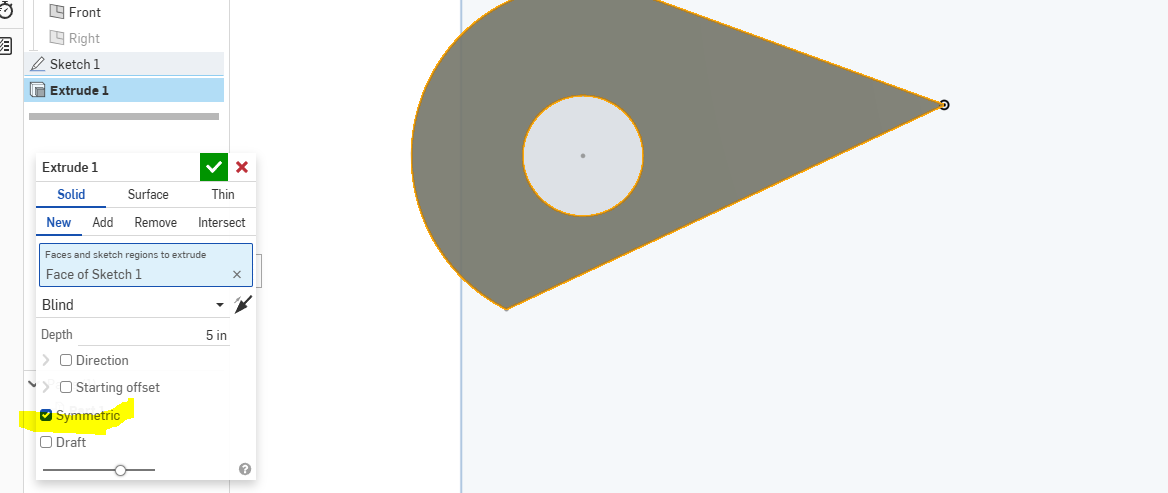
Step 7)  Create a symmetric extrudesymmetric-extrude2

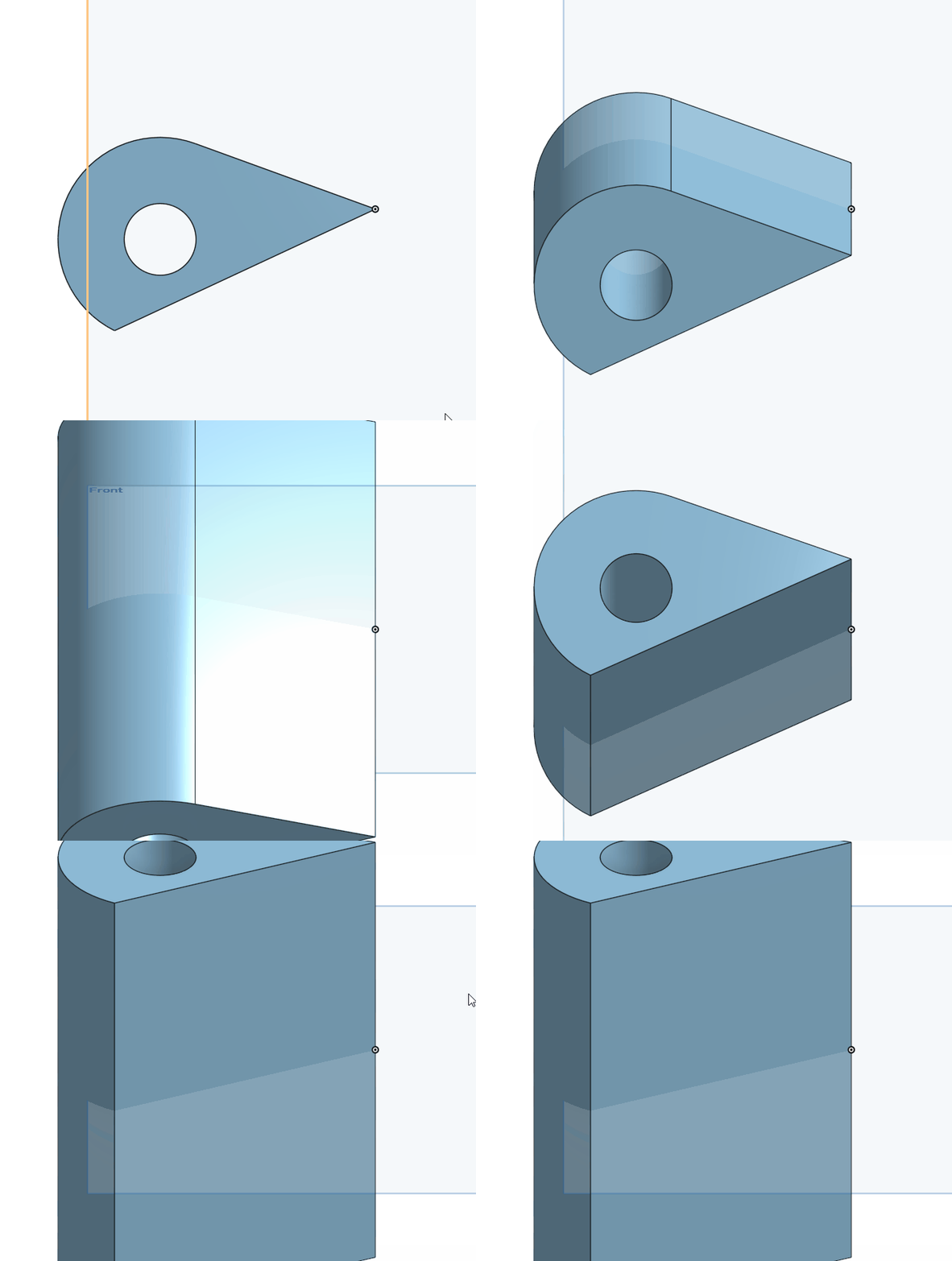
Step 8) Finished product. Notice how the symmetric extrude goes up and goes down:

symmetric-extrude

Advanced Parts Design Tips I

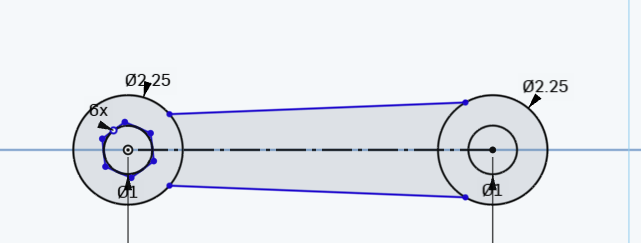
Step 1)

lines should be larger on right side

tip_1

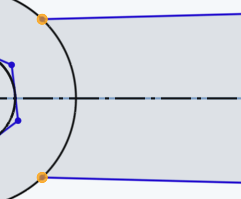
Step 2) Make the blue lines symmetric to the construction line

tip_2

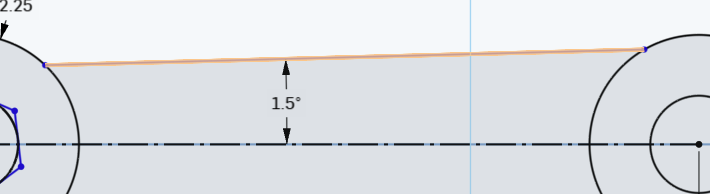
Step 3)  Click on the top line and construction and dimension the 1.5 degree angle

tip_3

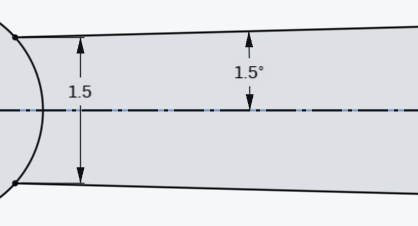
Step 4)  dimension the 2 left side points to 1.5

tip_4

Step 5) Resulting picture :

tip_5


Extrude with Offset

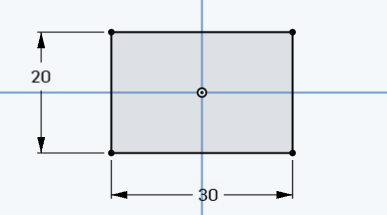
Step 1) Create a rectangle centered at the origin with a height of 20 and width of 30:

30by20rectangle

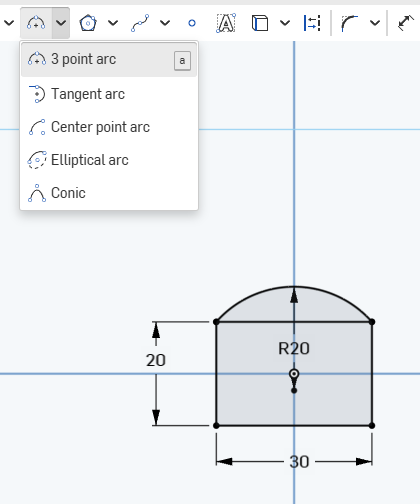
Step 2) add an arc as shown. Make sure it’s dimensioned :

30by20rectanglewarc

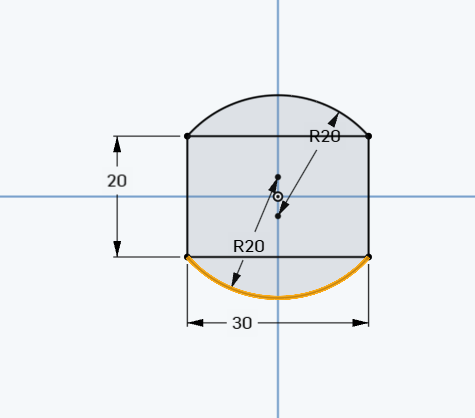
Step 3) Now the bottom:

30by20rectanglewarcNumba2


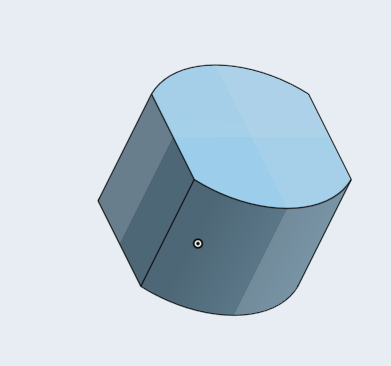
Step 4) Extrude the shape by 25MM:

extrude25mm

Step 5)  un-hide sketch 1

unhideSkettch1

Step 6)

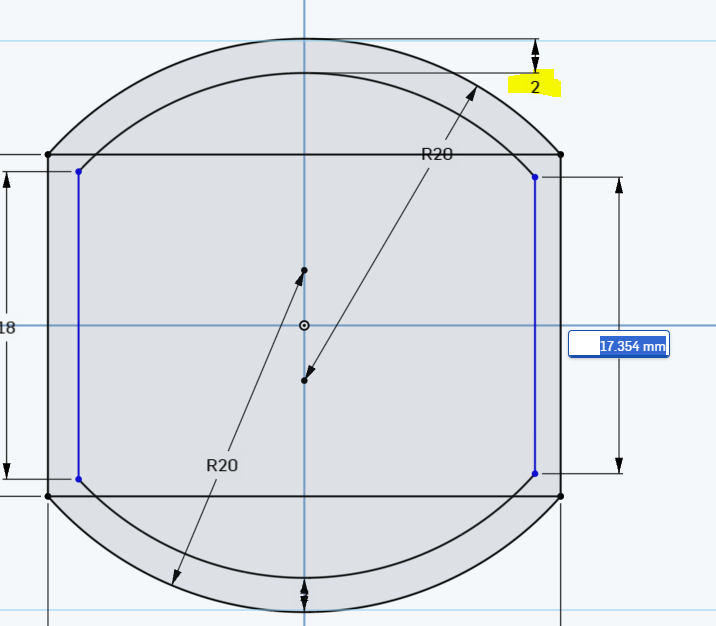
Go into sketch 1 and create  2 MM offset on the top arc and on the bottom arc, then connect their endspoints with lines :

offset as 2

Step 7)

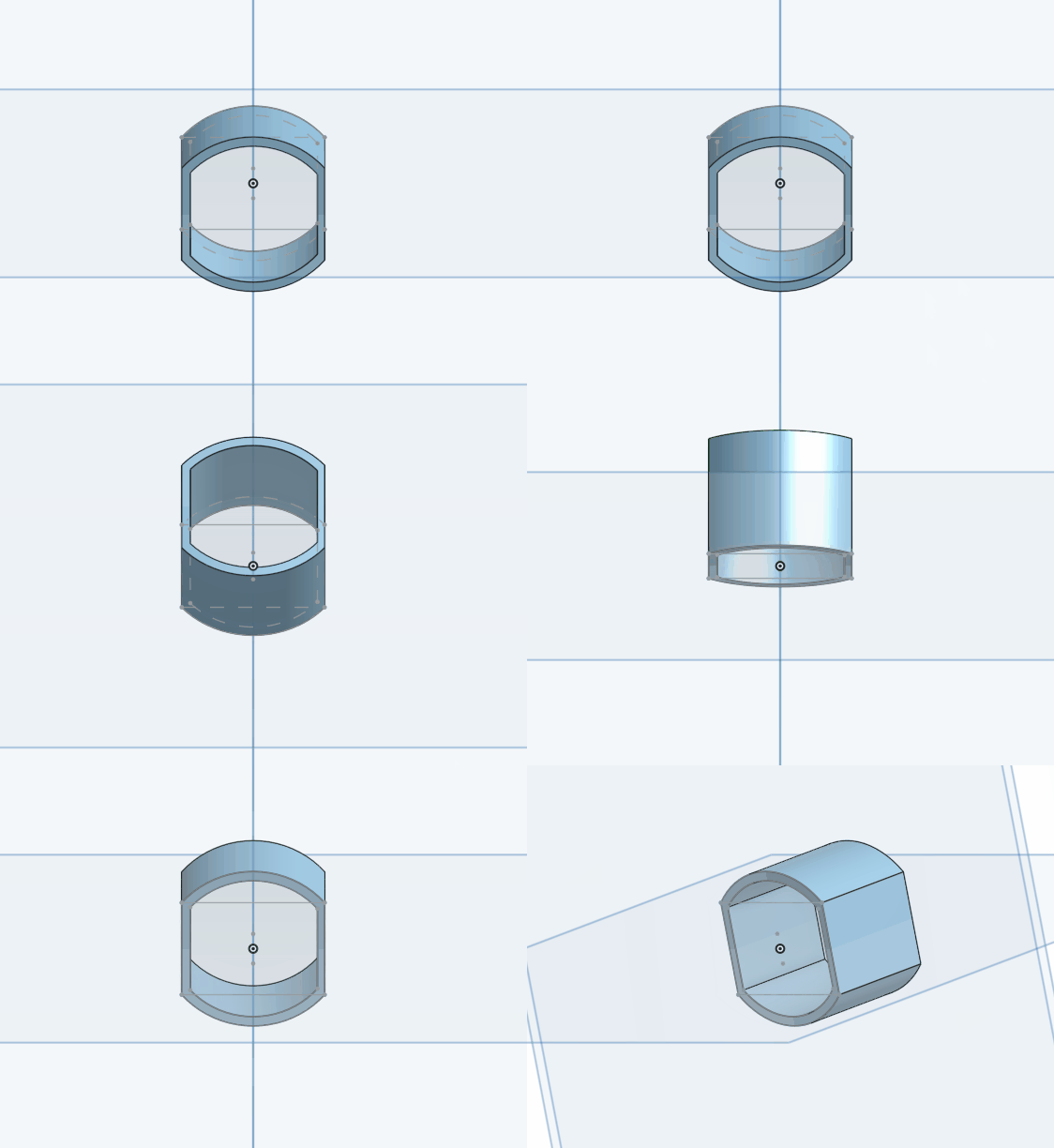
Final Result

final-result